
First-time setup · About 5 minutes
Follow the app and verify every part of the path live
This tutorial follows the same order as the Mac app's first-run onboarding. A connected status alone is not enough: the remote, compatible microphone, spoken audio, resulting text, and ordinary buttons should all pass their checks.
Creator videos
See how creators use SayAll
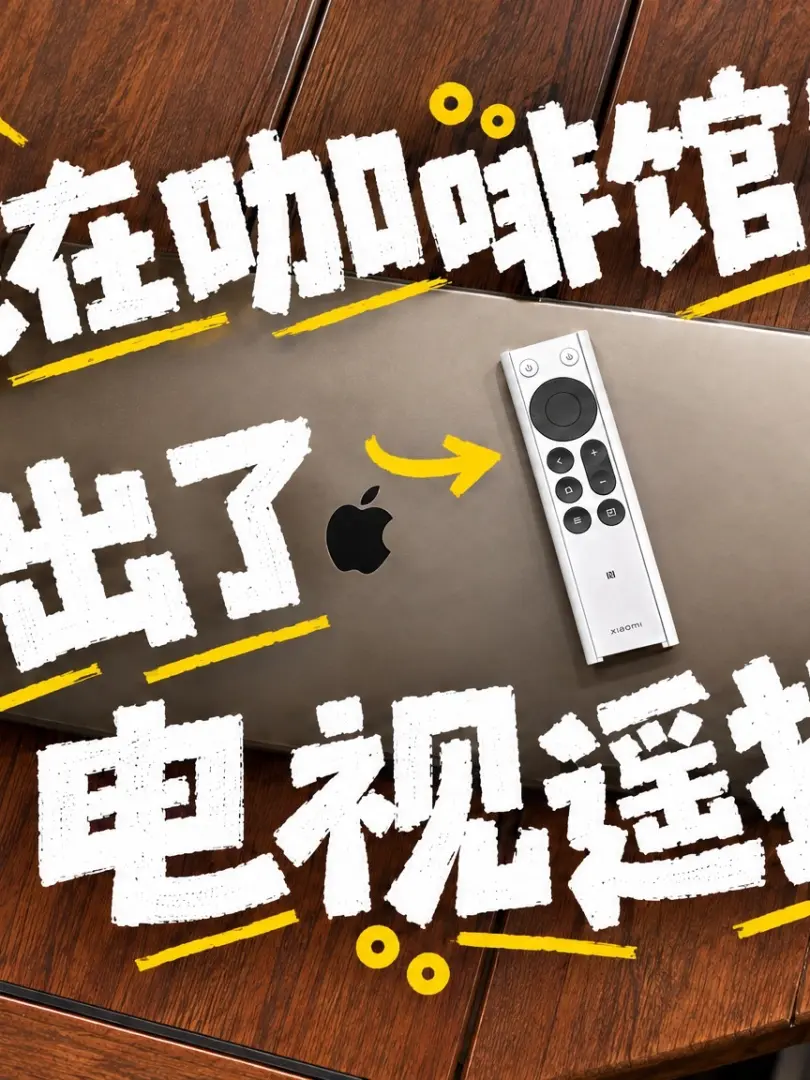
These Chinese-language videos show how different creators use SayAll for AI coding, everyday expression, and inventive remote-control workflows. Bilibili videos play on this page; the Douyin cover opens the original post.

Before you start
- An Apple silicon Mac with macOS 14 or later, or an Intel Mac with macOS 13 or later
- The latest stable SayAll release already installed
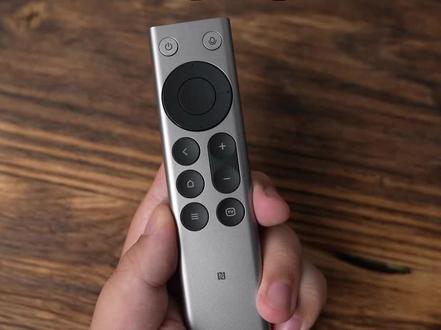
- A Xiaomi Bluetooth Remote 2 or 2 Pro, iPhone, or web controller
- A separately installed voice typing app
Set Up
Allow the three macOS permissions
Grant Bluetooth, Input Monitoring, and Accessibility. They connect the remote, read its physical buttons, and run configured shortcuts or the Typeless Fn tap.
- Bluetooth is shown as allowed
- Input Monitoring is shown as allowed
- Accessibility is shown as allowed
Set Up
Connect the remote and press an ordinary button
Pair the Xiaomi Bluetooth Remote 2 or 2 Pro in Mac Bluetooth Settings. Return to onboarding, keep the remote nearby, and press any ordinary button other than the voice key.
- Onboarding shows the remote as connected
- Onboarding confirms a physical button was received
- If nothing happens, use Search Again or inspect the Bluetooth pairing
Set Up
Prepare the compatible microphone
SayAll checks MiRemoteV 2ch and sends live controller audio to the selected voice typing app. Audio is processed locally and recordings are not saved.
- MiRemoteV 2ch is detected
- MiRemoteV 2ch is selected as the compatible microphone
- Onboarding reports that audio output is ready
Set Up
Choose your voice typing app
Select Doubao, WeType, Vokie, Typeless, or Other Voice App. SayAll prepares the matching voice-key behavior, which you can change later in Settings.
- Doubao or WeType receives remote audio through SayAll's virtual microphone
- Vokie can show and organize dictated text without replacing the current input method
- Typeless uses an Fn tap while SayAll sends the remote audio
- Other voice apps use the virtual microphone supplied by SayAll
Try It
Say one sentence and confirm text appears
Click the test field in onboarding, hold the remote's voice key while speaking, and release it when finished. Try saying “SayAll is connected.”
- The voice key was pressed and released
- Remote audio was received
- Recognized text appeared in the test field
Try It
Try three different ordinary buttons
Press three different ordinary buttons, such as direction, OK, Back, Home, or volume, to verify that the physical-control path also works.
- At least three different buttons are marked as tried
- Direction, confirmation, back, or volume behaves as expected
- Custom button actions remain available in the main panel
Setup is complete when you see “SayAll is ready”
At that point, live audio, text input, the remote connection, and ordinary buttons have all passed their checks. You can still adjust connection, voice, and button settings from the main panel.